
How to Use Model Context Protocol (MCP)
What MCP is, which clients support it, and how to connect an AI assistant to Mind Elixir App for mind map editing.
What is MCP?
MCP (Model Context Protocol) is an open standard that lets AI assistants connect to external tools and services. With it, an assistant can do more than chat—read and write files, drive apps, query data—depending on which MCP servers you attach.
Why it matters
Most AI assistants are limited to the conversation itself. If you want them to:
- Edit documents
- Drive apps to complete workflows
- Fetch weather or query a database
- Control other desktop applications (such as Mind Elixir)
you need a bridge. MCP is that bridge: a common protocol for exposing tools to AI, with operations running safely on your device, and the freedom to swap servers and models as needed.
How MCP works
Take Mind Elixir as an example. You want the AI to add a branch to a mind map, but Claude or ChatGPT has no built-in knowledge of Mind Elixir's internal canvas structure. The flow looks like this:
- You say: "Add a branch to the mind map"
- The AI understands the intent and sends a standardized MCP request
- Mind Elixir's MCP server receives it and creates the branch on the active canvas
- The result goes back over MCP, and the new branch appears in real time
Three core pieces:
- AI assistant — parses natural language and decides which tool to call
- MCP protocol — defines how both sides communicate
- MCP-enabled tools (e.g. Mind Elixir) — perform the actual actions
Clients that support MCP
Claude Desktop
- Anthropic's official desktop client for Claude
- One of the first clients with MCP support; works seamlessly with the
@mind-elixir/mcpbridge package
Cursor
- Popular AI code editor with native support for both Command (stdio) and HTTP MCP servers
Claude Code
- Anthropic's developer CLI environment
- Highly flexible config; supports stdio and HTTP transports for scripting and automation
Cline / Windsurf / VS Code
- Common editor extensions with custom MCP server support
More clients: https://modelcontextprotocol.io/clients
Using MCP with Mind Elixir
Mind Elixir Desktop ships with a built-in MCP server. Once connected, you can inspect, generate, and edit mind maps using plain language.
What you can do
- Inspect map structure: Let the AI read the full hierarchy and topics of the active mind map
- Smart editing: Add, update, or remove nodes in natural language (e.g. "Add three sub-branches under Architecture")
- Generate full mind maps: Transform articles, meeting notes, or project specs into complete mind maps
- Summaries & arrows: Automatically create summary nodes or draw relationship arrows between topics
How to connect
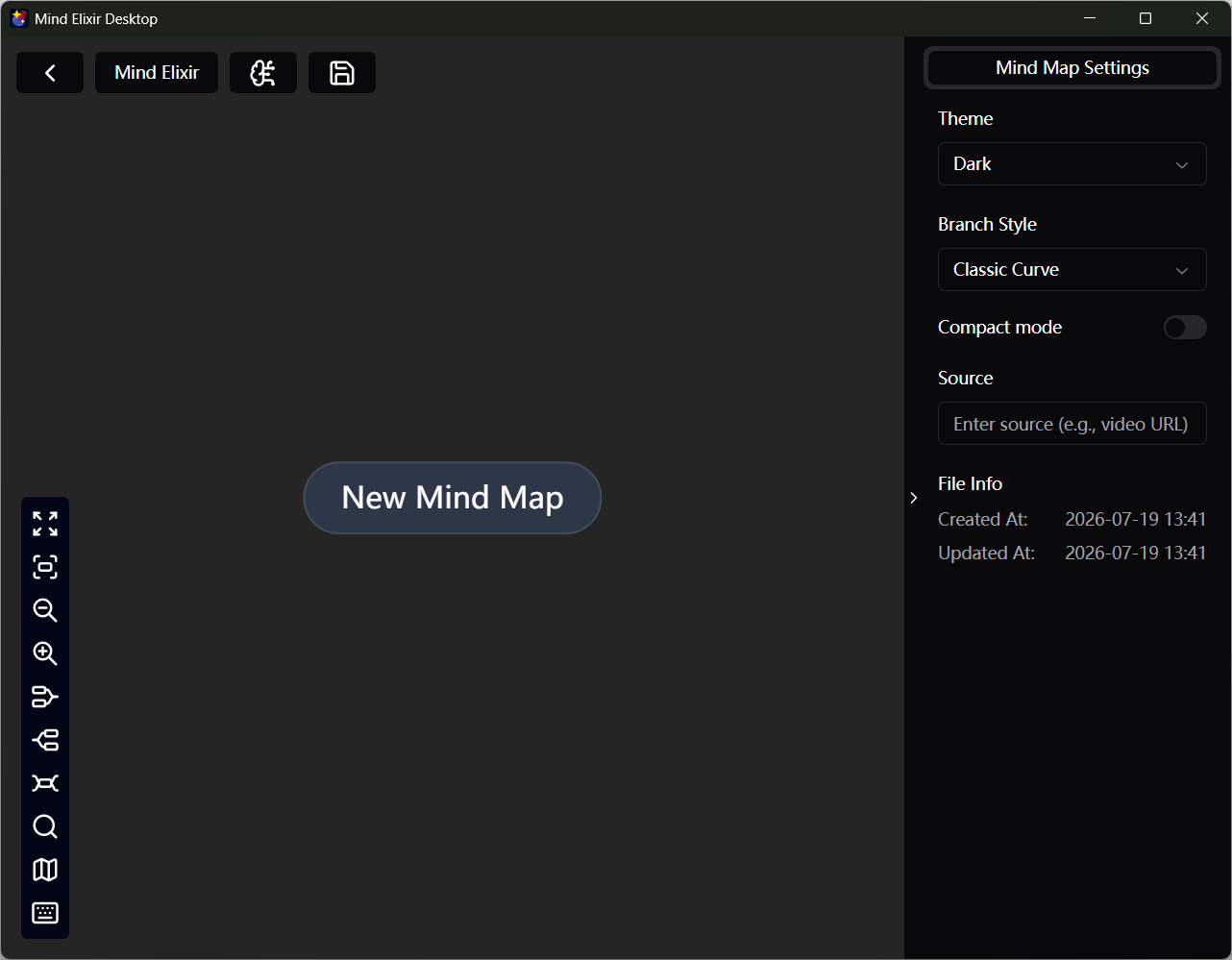
Step 1: Open Mind Elixir App
- Launch Mind Elixir Desktop
- Create or open the mind map you want to work on (MCP operates on the active map)
Step 2: Add the MCP server in your AI client
Mind Elixir supports two connection methods. Choose the one that best fits your client:
Method 1 (Recommended): Via @mind-elixir/mcp Command Bridge
For Claude Desktop, Cursor, and other stdio-based clients, we provide the official NPM bridge package @mind-elixir/mcp. No manual network handling required—it connects instantly.
Requirement: Node.js installed locally (version >= 18).
1. Claude Desktop Setup
Open your Claude Desktop config file (typically ~/Library/Application Support/Claude/claude_desktop_config.json on macOS or %APPDATA%\Claude\claude_desktop_config.json on Windows) and add the following under mcpServers:
{
  "mcpServers": {
    "mind-elixir": {
      "command": "npx",
      "args": ["-y", "@mind-elixir/mcp@latest"]
    }
  }
}
Save the file and restart Claude Desktop.
2. Cursor Setup
In Cursor, go to Settings → MCP, then click Add new MCP server:
- Name:
mind-elixir - Type:
command - Command:
npx -y @mind-elixir/mcp@latest
3. Claude Code Setup
Run the following command directly in your terminal:
claude mcp add mind-elixir -- npx -y @mind-elixir/mcp@latest
Method 2: Direct HTTP (Streamable HTTP)
The latest MCP specification has transitioned to Streamable HTTP (the legacy SSE transport has been deprecated). Mind Elixir listens on local port 6595, with the MCP endpoint at /mcp.
If your client supports connecting directly to HTTP MCP endpoints:
- Server URL:
http://127.0.0.1:6595/mcp
Client commands & configs:
Claude Code:
claude mcp add --transport http mind-elixir http://127.0.0.1:6595/mcp
Codex:
codex mcp add --url http://127.0.0.1:6595/mcp mind-elixir
Generic JSON Configuration (for HTTP-capable clients):
{
  "mcpServers": {
    "mind-elixir": {
      "url": "http://127.0.0.1:6595/mcp"
    }
  }
}
Step 3: Start using it
Once connected, make sure the target mind map is open in Mind Elixir Desktop, then ask your AI assistant:
- "Read the structure of the current mind map"
- "Add three branches under the root node: Ideas, Planning, Execution"
- "Based on this requirement doc, generate a structured mind map"
- "Analyze this mind map and suggest improvements or missing topics"
Tips
- Keep it running: Mind Elixir Desktop must be open and active while you use MCP
- Be specific: Clear instructions (naming specific parent nodes or topic titles) yield the best results
- Iterate: For large modifications, let the AI work in progressive steps
- Save your work: Remember to review and save the mind map after edits
Troubleshooting
- Check app status: Make sure Mind Elixir Desktop is running and an active mind map is open
- Check port availability: Verify that port
6595is not occupied by another program - Verify Node.js: If using
npx, runnpx --versionto ensure Node.js is installed - Firewall / Antivirus: Ensure local loopback connections to
127.0.0.1:6595are not blocked - Restart: Completely quit and reopen Mind Elixir Desktop, then reconnect