
Sync Mind Elixir Mind Maps with Oracle Cloud (OCI) Object Storage
A complete guide to syncing Mind Elixir desktop mind maps to Oracle Cloud Infrastructure object storage via its S3-compatible API — private, multi-device backup at zero cost.
With the release of version 1.10.0, Mind Elixir's desktop app has officially gained S3 sync capability, allowing you to sync with any S3-compatible object storage for seamless multi-device collaboration while keeping full control of your data. Compared with self-managed Git repos, a cloud vendor's object storage is far more hands-off — no repo to maintain, no command line required.
Oracle Cloud (OCI) is one of the few clouds that offers both an Always Free tier and a standard S3-compatible API: the free tier includes 10 GB of object storage, and its S3 compatibility layer works with the AWS SDK out of the box. This guide walks you through syncing Mind Elixir mind maps to Oracle Cloud Object Storage.
Why Oracle Cloud?
- Always Free: 10 GB of object storage, no time limit, no charge
- S3 compatible: native S3 Compatibility API — Mind Elixir works without any extra setup
- Global regions: choose the region closest to you for the lowest latency
Prerequisites
- An Oracle Cloud account (sign up for the Free Tier)
- Mind Elixir desktop installed (Windows / macOS / Linux)
Step 1: Create an OCI Bucket
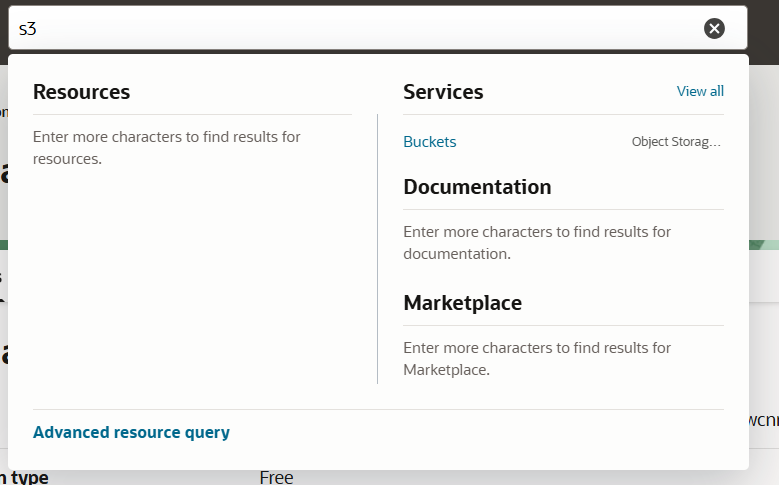
- Sign in to the OCI Console and go to Storage → Buckets
- Click Create Bucket
- Give the bucket any name, e.g.
mind-elixir-bucket - Leave the other options at their defaults and create the bucket
Step 2: Generate an S3-compatible Access Key
OCI's S3 compatibility layer uses Customer Secret Keys, not the regular API signing keys.
- In the OCI Console go to Identity & Security → Users
- Select your current user
- Switch to the Customer Secret Keys tab
- Click Generate Secret Key and give it a name (e.g.
mind-elixir) - The result contains:
- Access Key: a long string you can view any time
- Secret Key: shown only once — copy it immediately
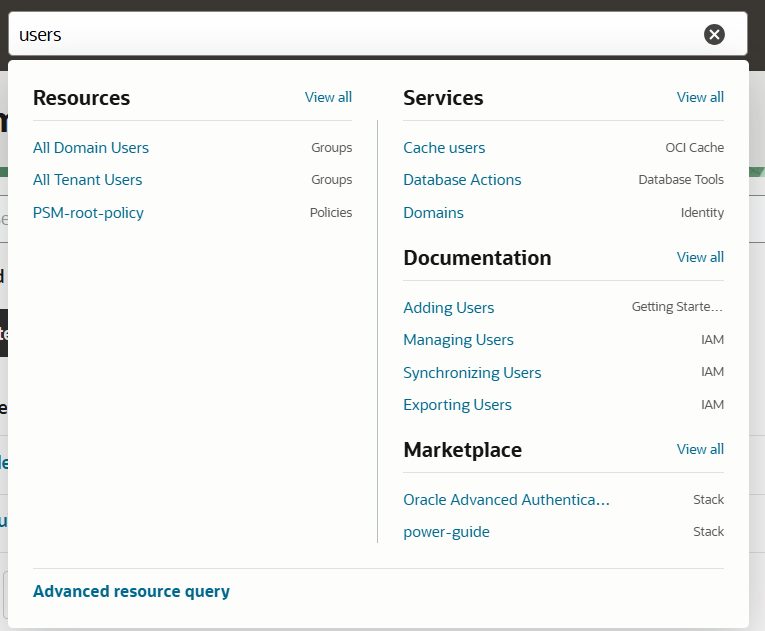
🔐 These two values are the Access Key / Secret Key you'll enter in Mind Elixir. Keep them safe.
Step 3: Fill in Mind Elixir's S3 Settings
Open Mind Elixir desktop, go to Settings → S3 Sync, toggle it on, and fill in each field:
| Field | What to enter | Example |
|---|---|---|
| Endpoint | https://<namespace>.compat.objectstorage.<region>.oraclecloud.com |
https://axaxnpcrorw.compat.objectstorage.us-phoenix-1.oraclecloud.com |
| Region | Your OCI region identifier | us-phoenix-1 |
| Access Key | The Access Key from Step 2 | 08b9c71f9c2e... |
| Secret Key | The one-time Secret Key from Step 2 | Zx9Q... |
| Bucket | The bucket name from Step 1 | mind-elixir-bucket |
| Prefix (optional) | A remote path prefix to isolate your files | mind-elixir/ |

💡 Locating your Region: You can find your active region identifier (e.g.,
us-phoenix-1) in the top-right corner of the Oracle Cloud Console header, or by clicking the region selection dropdown menu.
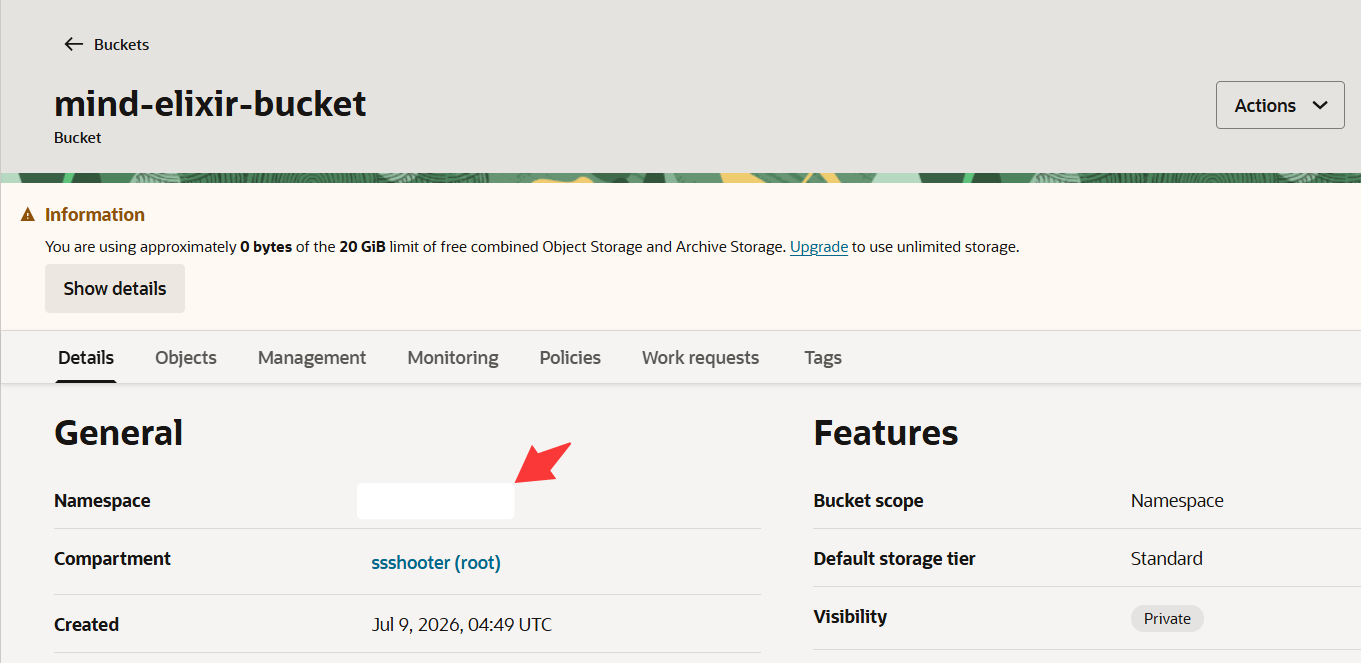
💡 Locating your Namespace: You can find your Object Storage Namespace directly on the Bucket details page under the Bucket Information section.
🔧 Technical note: When a custom Endpoint is configured, Mind Elixir's S3 client forces path-style addressing (
force_path_style). That is exactly what Oracle Cloud's S3-compatible API requires, so no extra configuration is needed to connect to OCI.
After filling it in, it's a good idea to use the Copy Config / Paste Config buttons to back up the JSON — so you won't have to hunt for the keys again after a reinstall.
Step 4: Test the Connection and Sync
- Click Test Connection
- On success you'll see
Connection successful. Found N object(s). - If it fails, see Troubleshooting below
- On success you'll see
- Once connected, enable Auto Sync on Startup and Mind Elixir will sync your mind maps at startup automatically
- You can also click Sync Now at any time to trigger a manual sync
The sync progress (upload / download / delete) is shown as a toast in the bottom-right corner.
Multi-device Usage
On another device, fill in the same OCI configuration (same Endpoint / keys / Bucket / Prefix). Mind Elixir uses a bidirectional merge based on file modification time:
- Remote has it, local doesn't → download
- Local has it, remote doesn't → upload
- Both sides have it but differ → the newer modification time wins
⚠️ As with the Git approach, avoid editing the same mind map on two devices at once and then syncing both — the last writer may overwrite. The habit "sync first, edit, sync after" is the safest.
Troubleshooting
401 / 403 Unauthorized
- Make sure the Access Key and Secret Key are copied completely, with no leading/trailing spaces
- Confirm you're using a Customer Secret Key, not an API signing key
- The Secret Key is shown only once — regenerate it if you lost it
NoSuchBucket / Bucket not found
- Check the bucket name spelling
- Confirm the bucket's region matches the region in your Endpoint
Wrong region (PermanentRedirect / region mismatch)
- The region in the Endpoint, the Region field, and the bucket's actual region must all match
- Try setting Region to
auto
Network unreachable (dispatch failure)
- Make sure the Endpoint URL is complete and starts with
https:// - Check that your network can reach
oraclecloud.com
Summary
With Oracle Cloud's S3-compatible API you can:
- ✅ Back up mind maps long-term on the free tier, at zero cost
- ✅ Auto-sync across devices — no CLI, no Git repo to maintain
- ✅ Keep your data in a cloud account you control, with privacy preserved
Mind Elixir's S3 sync is built on the standard AWS S3 SDK with forced path-style addressing, so it connects to S3-compatible services like Oracle Cloud out of the box. Configure once, benefit forever.
Questions? Open an issue on GitHub or reach out in the community.