
Formatting Nodes in Mind Elixir Desktop: Custom Styles, LaTeX, and Chemical Formulas
Learn to format mind map nodes in Mind Elixir Desktop. Master custom text colors, highlight markers, and advanced KaTeX math & mhchem chemical equation rendering.
When using mind maps to organize research notes, technical specifications, or complex study materials, plain text is often not enough. You might need to color-code specific words, highlight key terms, or insert mathematical equations and chemical formulas.
Mind Elixir Desktop supports standard Markdown syntax inside nodes, and integrates KaTeX for math typesetting along with the mhchem plugin for chemical equations. We have also introduced a simplified syntax for custom text coloring and background highlighting to help you build structured, highly readable mind maps. This guide explains how to use these features with step-by-step examples.
1. Custom Text Colors: The Double-Star Syntax
Writing verbose HTML tags like <span style="color:red"> inside a small mind map node can be cumbersome. To solve this, Mind Elixir Desktop supports a double-star color syntax:
**%:#HEX_COLOR:Text to color**
This syntax is built directly upon the standard Markdown bold formatting (**), so it does not disrupt the general structural parsing of the document. It works with standard hexadecimal color codes (like #EF4444), allowing you to match any custom theme or visual hierarchy.
Example
- Markdown Source:
This is a **%:#EF4444:highly critical** step, requiring **%:#10B981:express approval**. - Rendered Output: "highly critical" is rendered in bold red (
#EF4444) and "express approval" in bold green (#10B981).
 (Figure 1: Custom text color inside a node)
2. Background Highlighting: The Highlight Marker
In addition to coloring text, you may want to apply a background color to act as a marker for key deadlines or jargon. You can achieve this using the double-underscore highlight syntax:
__%:#HEX_COLOR:Text to highlight__
The background marker effect draws immediate attention, making it perfect for marking terms, key action items, or specific categories. We recommend using soft, pastel, or semi-transparent colors (such as soft yellow #FEF08A or soft blue #BFDBFE) to ensure the foreground text remains highly legible.
Example
- Markdown Source:
Please submit the report by __%:#FEF08A:next Friday EOD__ and __%:#BFDBFE:CC the entire team__. - Rendered Output: "next Friday EOD" gets a soft yellow background (
#FEF08A), and "CC the entire team" gets a soft blue background (#BFDBFE).
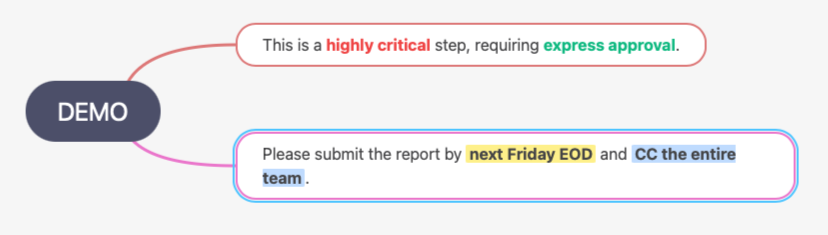 (Figure 2: Text background highlighting)
3. LaTeX Mathematical Equation Rendering
For researchers, students, and engineers, rendering formulas is essential. Mind Elixir Desktop incorporates the high-performance KaTeX library to display equations smoothly:
- Inline Formulas (mixed with text):
$equation$ - Block Formulas (standalone, centered, and scaled up):
$$equation$$
Example
- Inline Formula:
The Pythagorean theorem is $a^2 + b^2 = c^2$. - Block Formula:
One of Maxwell's Equations: $$\nabla \cdot \mathbf{E} = \frac{\rho}{\varepsilon_0}$$
In rendering, normal text and beautiful vector-sharp equations blend together seamlessly. Standalone block equations center automatically and scale for better readability.
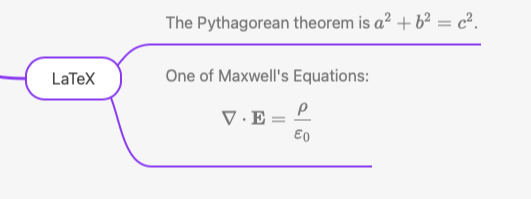 (Figure 3: LaTeX equations inside a node)
4. Chemical Equations with mhchem
Writing chemical equations in raw LaTeX can be repetitive because you have to specify subscript operators (_) and direction arrows (\rightarrow) manually. Mind Elixir Desktop includes mhchem support to simplify this process.
Enclose the formula inside mathematical delimiters using \ce{}:
$\ce{Chemical Formula or Reaction Equation}$
This syntax intelligently recognizes chemical symbols. For example, entering H2O automatically formats it as standard chemical notation with subscripts (). It also seamlessly supports reaction arrows (->), equilibrium symbols (<=>), gas release markers (^), and precipitate markers (v).
Example
- Water Synthesis:
$\ce{2H2 + O2 -> 2H2O}$ - Calcium Carbonate Precipitate:
$\ce{Ca(OH)2 + CO2 -> CaCO3 v + H2O}$ - Acetic Acid Ionization:
$\ce{CH3COOH <=> CH3COO- + H+}$
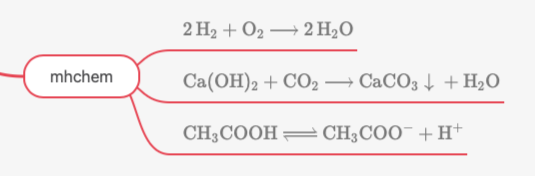 (Figure 4: Chemical reaction formulas)
5. One-Click Import: Plaintext Format in Practice
Mind Elixir Desktop includes a powerful plaintext import/export format. You can copy the code block below and import it directly into the app to instantly generate a complete, styled mind map containing colors, highlights, math equations, and chemical formulas:
- 🚀 Mind Elixir Demo Map [^root]
  - 🎨 Rich Colors {"color": "#6366F1"}
    - Double-Star Color Syntax
      - Red warning text: **%:#EF4444:Critical Warning**
      - Green success text: **%:#10B981:Approval Granted**
    - Double-Underscore Highlights
      - Soft yellow highlight: __%:#FEF08A:Key Concept__
      - Soft blue highlight: __%:#BFDBFE:Reference Resource__
  - 🔗 External Links {"color": "#3B82F6"}
    - Quick Access: [Mind Elixir GitHub](https://github.com/ssshooter/mind-elixir-core)
  - 📐 Mathematical Typesetting [^academic] {"color": "#8B5CF6"}
    - Inline Math
      - Area of a circle: $S = \pi r^2$
    - Standalone Block Math
      - Euler's Identity: $$e^{i\pi} + 1 = 0$$
    - Complex Physics
      - Schrödinger Equation: $$i\hbar\frac{\partial}{\partial t}\Psi(\mathbf{r},t) = \hat{H}\Psi(\mathbf{r},t)$$
  - 🧪 Chemistry with mhchem {"color": "#EC4899"}
    - Basic Molecules
      - Glucose: $\ce{C6H12O6}$
    - Complex Reactions
      - Photosynthesis: $\ce{6CO2 + 6H2O ->[Light][Chloroplast] C6H12O6 + 6O2}$
  - > [^root] >-Explore Academics-> [^academic]
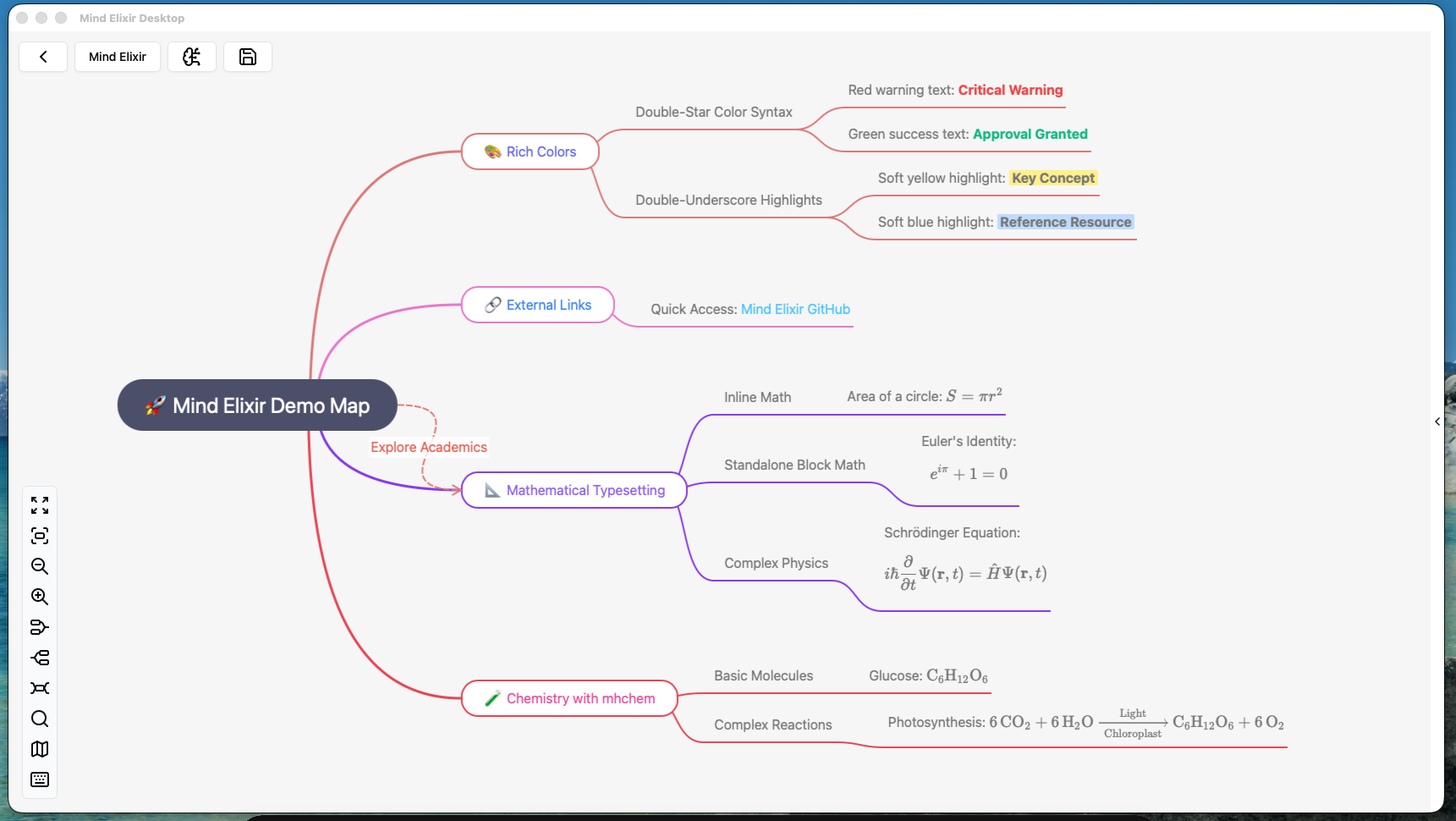 (Figure 5: Mind map generated from the Plaintext structure)
Summary
By combining Markdown, custom colors, highlights, LaTeX, and mhchem support, Mind Elixir Desktop provides a flexible environment to build highly structured and readable maps for any subject.
To try out these styles, simply open Mind Elixir Desktop, select Import, and paste the plaintext structure shown above.